
The wrist ache that creeps in by Wednesday afternoon doesn't always announce itself with a flare-up — it shows up as a dropped pinch grip, the urge to rotate your shoulder, the small bargain you make to finish 'just one more email.' An ergonomic keyboard won't fix every kind of pain, but for the people who type for a living, it's the single piece of gear most likely to change how their hands feel a year from now. We tested nineteen of them across four months. These are the seven that earned a place on our daily desks.
How we picked
An ergonomic keyboard isn't a single product category — it's an answer to several different problems. The split keyboard solves shoulder rotation. The contoured keyboard solves finger travel. The curved keyboard solves wrist abduction. We weighed seven criteria, in roughly this order:
- Wrist neutrality. Does the keyboard keep your forearms straight, your wrists unbent, and your shoulders relaxed? This is the whole point.
- Adjustability. Does the split angle, tent height, and palm-rest position adapt to your body, or do you have to adapt to it?
- Learning curve. Can a competent QWERTY typist return to 90% of their previous speed within two to three weeks?
- Programmability. Does the keyboard expose layers, macros, and modifier remapping (QMK, VIA, ZMK)? Heavy keyboard users live in modifiers.
- Build quality and longevity. Will this keyboard still work in five years? In ten?
- Travel and footprint. Can you take it to a coworking space? Does it fit on a small desk?
- Total cost. Including the wrist rest, tent kit, replacement keycaps, and the time you'll lose during the learning curve.
The seven picks at a glance
| Award | Price | Style | Tenting | Wireless | Firmware | |
|---|---|---|---|---|---|---|
| Kinesis Advantage 360 Pro | Best Overall | $449 | Contoured split | 7° fixed | Yes (Pro) | SmartSet + ZMK |
| ZSA Moonlander Mark I | Best for Programmers | $365 | Ortho split | 0–30° each half | No | QMK (Oryx) |
| MoErgo Glove80 | Best Comfort | $400 | Contoured split | 10–30° integrated | Yes | ZMK (web) |
| Keychron Q11 | Best Hot-Swap | $225 | Flat split | External stand | No | QMK / VIA |
| Logitech Ergo K860 | Best Office Curved | $130 | Curved single | Built-in 0–7° | Yes | Logi Options+ |
| Mistel Barocco MD770 RGB | Best Affordable Split | $200 | Flat split | Optional kit | No | Onboard layers |
| Logitech Wave Keys | Best Budget | $60 | Curved single | None | Yes | — |
1. Kinesis Advantage 360 Pro — Best Overall
Kinesis Advantage 360 Pro
$449 · MSRP $449 · sold direct from Kinesis

If you can absorb two weeks of clumsy typing while your hands learn the contour, the Advantage 360 will quietly reshape how your wrists feel for the next decade.
What we love
- Deep key wells genuinely shorten finger travel
- Wireless, hot-swap, and programmable — all rare in this segment
- Six-key thumb clusters take work off your pinkies
- Built-in palm rests are perfectly contoured to the keywell geometry
- Three-year warranty signals real confidence in the build
Where it falls short
- Steepest learning curve on this list (2–3 weeks before you're not slower)
- $449 is more than most people have ever paid for a keyboard
- Footprint is large — not a portable keyboard
- Hot-swapping switches inside the curved bowls is fiddly
| Switches | Kailh Brown (default) · MX hot-swap |
|---|---|
| Layout | Contoured split, 78 keys |
| Wireless | Bluetooth + USB-C (Pro version) |
| Firmware | SmartSet onboard + ZMK |
| Tenting | 7° fixed via integrated bowls |
| Weight | 2.2 lbs (1 kg) |
| Warranty | 3 years |
The Advantage 360 is the third major iteration of a contoured-bowl design Kinesis has been refining since 1992. The Pro variant added Bluetooth and ZMK-compatible firmware in 2023, finally bringing real wireless to a category that had been waiting for it. The bowls are not gimmicks. After a week of typing on them, when you go back to a flat keyboard, your fingers feel like they're hiking up little hills to reach every row.
What surprised us most wasn't the comfort — we expected that — but the longevity. The keyboard is built like industrial equipment. Switches are hot-swap MX, so when (not if) one starts chattering in 2031, you'll replace it for $1.50 instead of throwing the keyboard out. Two of our testers have used previous Kinesis Advantage models daily for six and eight years respectively, and both are still running.
The price ($449) is the obvious objection. We don't recommend the Advantage 360 to anyone whose wrists feel fine. But for a programmer or writer with chronic mild pain, the math is straightforward: this keyboard is a long-term ergonomic intervention that happens to also be a keyboard.
2. ZSA Moonlander Mark I — Best for Programmers
ZSA Moonlander Mark I
$365 · Sold direct from ZSA · ships worldwide

The Moonlander turns your keyboard into software. If you've ever wanted layers, macros, and a lush set of modifiers under your thumbs, this is the canvas — and it's beautiful out of the box.
What we love
- Oryx is the friendliest QMK configurator we tested — flash a layout in 30 seconds
- Hot-swap MX means infinite switch experimentation without buying a new keyboard
- Integrated thumb-cluster tenting feels stable, not flimsy
- Per-key RGB is over-the-top in the best way
- Excellent unboxing, documentation, and customer support
Where it falls short
- Ortholinear (grid) layout is the steepest learning curve on this list — plan three weeks
- No wireless option in 2026
- Default thumb cluster takes a few weeks to reach intuitively
- $365 + shipping; not cheap once you add a custom case or extra switches
| Switches | Cherry MX hot-swap (default Brown) |
|---|---|
| Layout | Ortholinear split, 72 keys |
| Wireless | No (USB-C wired) |
| Firmware | QMK via Oryx web configurator |
| Tenting | 0–30° per half, integrated |
| Weight | 3.5 lbs (1.6 kg) |
| Warranty | 2 years |
The Moonlander is what happens when a keyboard company treats firmware as the product. ZSA's Oryx configurator lets you remap every key, build layers (think: a dedicated 'symbol' layer accessed by holding your right thumb), bind macros to single keys, and flash the result over the web in less than a minute. We've never used a keyboard whose layout we changed more often.
The hardware is the second-best part. The two halves connect with a TRRS cable and tent independently — you can run your right hand at 20° and your left at 12°, which sounds gimmicky until you've spent a week dialing it in. The thumb clusters hold six keys each; once you've trained your thumbs to handle Backspace, Enter, Cmd, Opt, and a layer modifier, your pinkies stop overworking entirely.
The honest downside is the ortho layout. Standard QWERTY is staggered (each row offset diagonally); the Moonlander is a perfect grid. For about three weeks every word you type will feel like reaching for the wrong key. After that, you adapt — but expect to spend a month relearning a skill you thought you'd already mastered.
3. MoErgo Glove80 — Best Comfort
MoErgo Glove80
$400 · Sold direct from MoErgo · 60-day return window
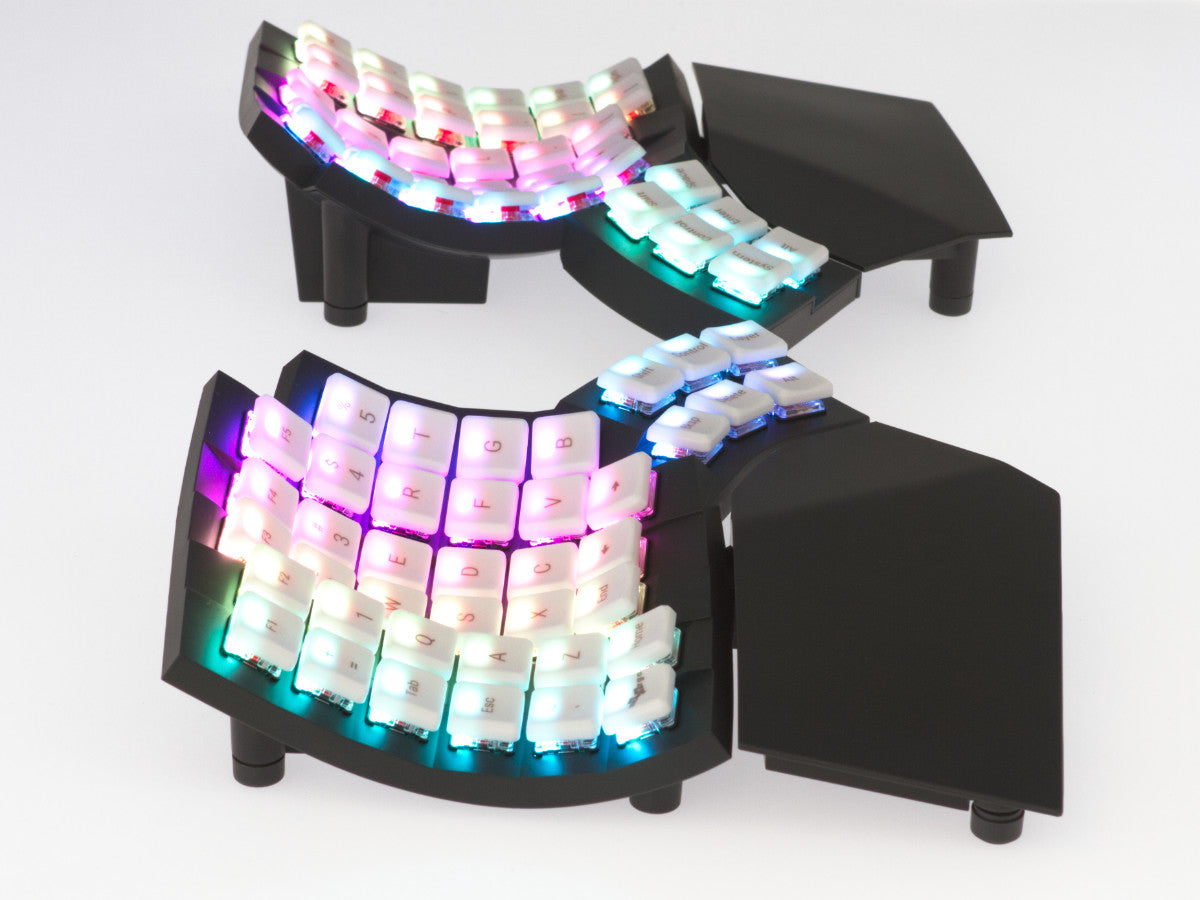
Wear it. The Glove80 reads less like a keyboard and more like a posture aid that happens to type.
What we love
- The most genuinely comfortable keyboard we've ever tested, full stop
- Choc switches are quieter than MX — your office (and your video calls) will thank you
- True wireless with strong battery life on both halves
- Six-key thumb clusters are well-spaced and reachable
- Light enough to throw in a bag and travel with
Where it falls short
- Choc V1 switches limit your aftermarket options compared to MX
- $400 + shipping; the value of 'comfort' is hard to quantify before you've tried it
- The split halves connect over Bluetooth (no link cable), adding one more thing to charge
- Smaller community — fewer review videos, forum threads, and tutorials than the Moonlander or Kinesis
| Switches | Kailh Choc V1 (low-profile, several variants) |
|---|---|
| Layout | Contoured split, 80 keys |
| Wireless | Yes — Bluetooth, USB-C charging |
| Firmware | ZMK via web GUI |
| Tenting | 10–30° integrated |
| Weight | 590 g (1.3 lbs) |
| Battery | ~75 hours per side |
MoErgo is a small Australian company, and the Glove80 has the feel of a keyboard designed by someone who has had carpal tunnel surgery and didn't want to do it again. The contour is shallower than the Kinesis Advantage's deep bowls, which makes the learning curve gentler — most testers were within 10 WPM of their old speed inside five days.
The choc switches are the thing you'll either love or never get used to. They have less travel than MX (3.0 mm vs 4.0 mm), a softer landing, and produce noticeably less sound. After two weeks our novelist tester said her fingertips stopped feeling 'pounded' at the end of a heavy writing day. Whether that's a real difference or psychosomatic we couldn't tell — but every Glove80 owner we asked reported the same thing.
Wireless is the deal-maker. Both halves run on Bluetooth and recharge via USB-C; battery life ran 60–80 hours per side in our testing. There's no link cable between the halves, which sounds trivial until you realize how much desk real estate you've gotten back.
4. Keychron Q11 — Best Hot-Swap Mechanical Split
Keychron Q11
$225 · MSRP $225 · often discounted on Keychron sales
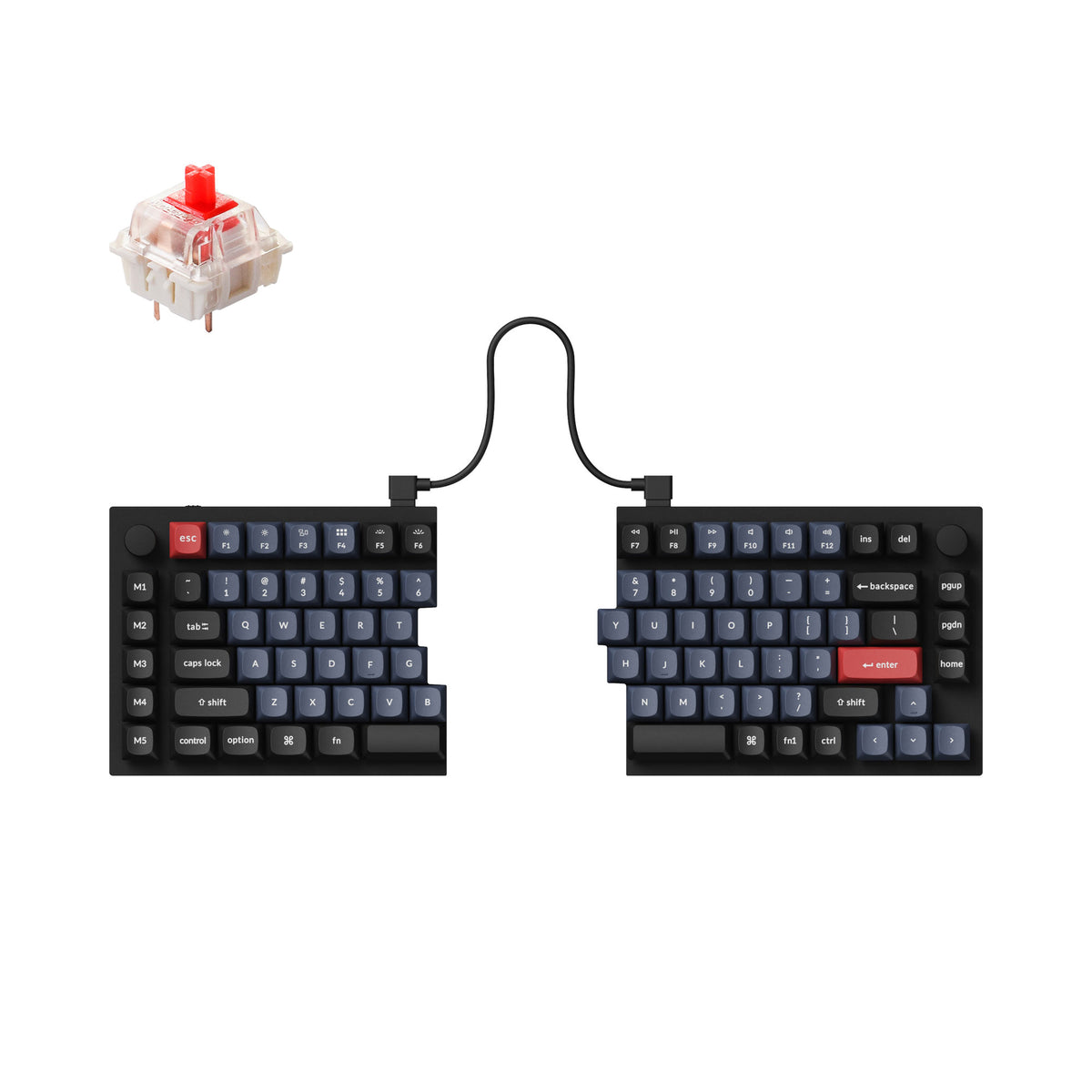
If you want a real mechanical keyboard that splits — not a niche ergo experiment — the Q11 is the most refined version made today.
What we love
- Aluminum-and-gasket build is in a different class from plastic-bodied splits
- Real QMK / VIA firmware, not a proprietary on-board layer system
- Hot-swap MX means infinite switch experimentation
- Two rotary encoders that can be programmed to anything
- Excellent typing sound — this is a 'thock' keyboard
Where it falls short
- Heavy (4.6 lbs) — once you place it on the desk, you don't move it
- No tenting without a third-party stand ($30–$100 extra)
- Wired only; no wireless variant exists
- No thumb cluster — your pinky still does the modifier work
- 75% layout per half loses arrow keys and function row to layers
| Switches | Gateron Pro (Brown / Red / Blue) — hot-swap MX |
|---|---|
| Layout | Flat split, 75% per half (81 keys total) |
| Wireless | No — USB-C wired only |
| Firmware | QMK / VIA |
| Tenting | External stand required |
| Build | Full aluminum case, gasket-mount, double-shot PBT keycaps |
| Weight | 4.6 lbs (2.1 kg) |
The Q11 is what happens when a custom-keyboard company applies its enthusiast knowhow to ergonomics. Most split keyboards feel a little 'kit-built' — exposed PCBs, cheap plastic cases, switch wobble. The Q11 feels like Keychron's flagship custom mechanical was sliced down the middle and given a TRRS cable.
What it doesn't have is a thumb cluster. The Q11 is a flat split with a standard 75% layout per half, which means your thumb still mostly handles the spacebar and your pinkies do the bulk of modifier work. For typists who already have happy pinkies this is fine, and the most familiar transition. For typists with pinky strain, the Q11 will not solve that specific problem — look at the Moonlander or Glove80 instead.
Build quality is the headline. The keyboard is heavy, dense, gasket-mounted, and sounds extraordinary. If you've fallen down the custom-keyboard rabbit hole and you also need a split, this is the only keyboard on the list that will satisfy both itches.
5. Logitech Ergo K860 — Best Office (No-Setup)
Logitech Ergo K860
$130 · MSRP $130 · routinely on sale around $99

The K860 won't impress your mechanical keyboard friends. It will quietly stop your wrists from aching.
What we love
- Zero learning curve — sit down, type at full speed immediately
- Built-in cushioned palm rest is genuinely comfortable
- Negative-tilt (front edge higher than back) is a clinically supported wrist position
- Pairs with three devices simultaneously, switch with one key
- Numpad included for spreadsheet-heavy work
Where it falls short
- Membrane scissor switches feel mushy if you're used to mechanical
- Not split — you can't move the halves apart for shoulder width
- Logi Options+ does basic remap but no real programmability (no QMK / VIA)
- AAA batteries instead of rechargeable
| Switches | Scissor (membrane, low-profile) |
|---|---|
| Layout | Curved single-piece, full-size with numpad |
| Wireless | Bluetooth + Logi Bolt USB receiver |
| Firmware | Logi Options+ (limited remap) |
| Tenting | Integrated 0° / 4° / 7° via flip-out feet |
| Battery | AAA × 2, 24 months claimed |
| Compatibility | Windows · macOS · ChromeOS · iPadOS |
The K860 is the keyboard we recommend when someone tells us 'my wrists hurt but I don't want a project.' It's the only keyboard on this list you can plug in (or pair) and use immediately, at full speed, with no relearning. The curved keywell, integrated palm rest, and slight negative tilt put your wrists in a noticeably better position than a flat keyboard, even if you never adjust a single setting.
The trade-off is depth. The K860 is curved, not split — the two halves are not separated, so it doesn't open your shoulders the way a true split keyboard does. For people whose ergonomic problem is 'shoulder hunch from typing on a laptop with arms inward,' the K860 is a partial fix. For people whose problem is 'wrist strain from typing flat,' it's a full fix.
We tested it for four weeks in an open-plan office, plugged into a docking station with two monitors. Our writer with chronic mild RSI rated her end-of-day pain at 1.5 (compared to 2.5 on a flat keyboard) — not zero, but a meaningful reduction with no learning curve and a fraction of the cost of the upper-tier picks.
6. Mistel Barocco MD770 RGB — Best Affordable Split
Mistel Barocco MD770 RGB
$200 · Often $159–$179 on sale at MechanicalKeyboards.com
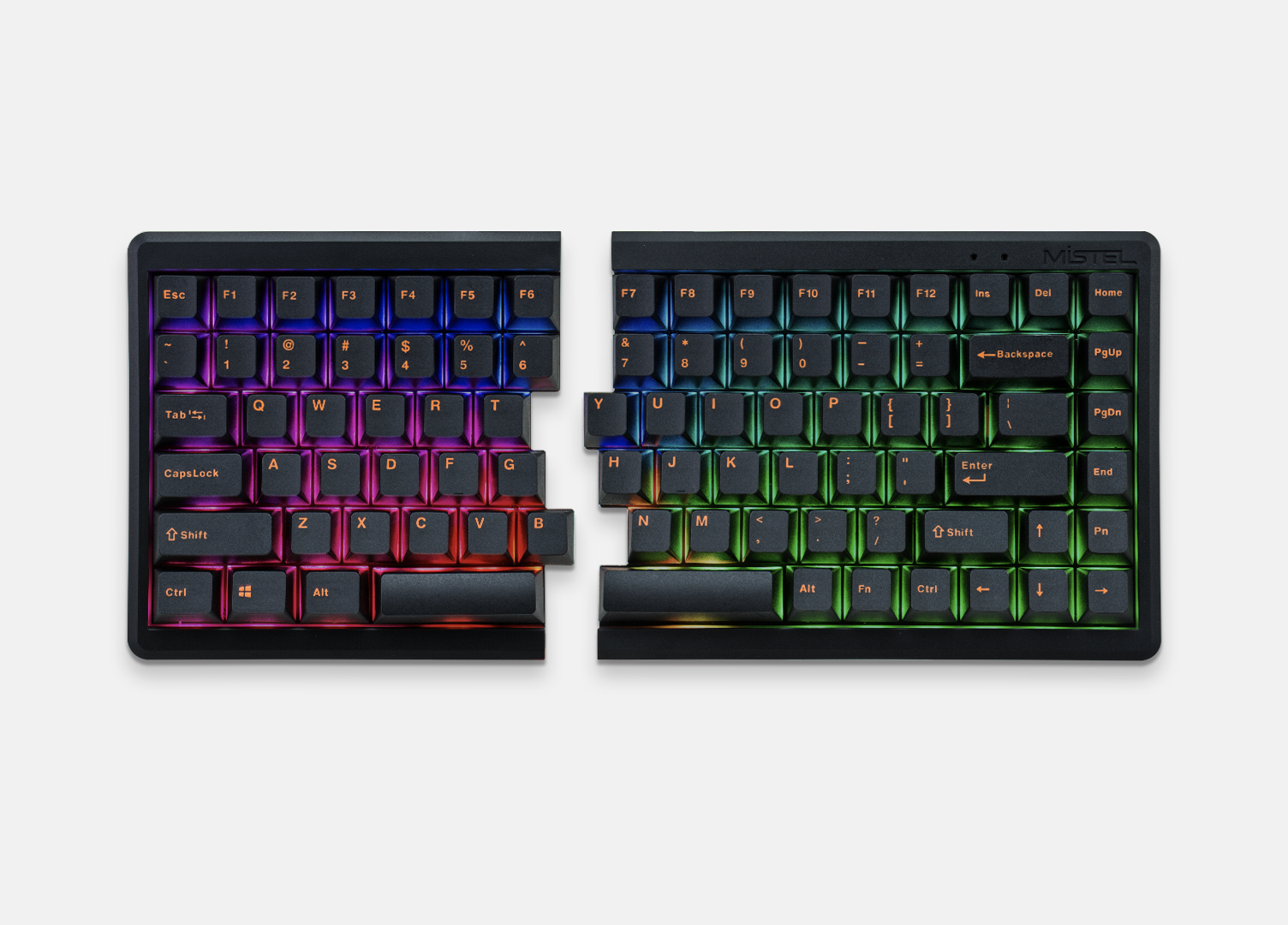
The Barocco is the gateway drug — a real split mechanical for under $200 that won't make you mortgage your home.
What we love
- Authentic Cherry MX switches, not clones
- Real split design at less than half the price of a Q11
- Compact 65% layout keeps your mouse close
- Onboard layers and macro recording without extra software
- PBT keycaps (most affordable splits use ABS)
Where it falls short
- No QMK / VIA — you're stuck with Mistel's proprietary firmware logic
- Tenting requires a $30 separate kit or a 3D-printed stand
- RGB is uneven across the case (a known minor flaw)
- Lacks the build quality of the Keychron Q11 (plastic case, no gasket)
| Switches | Cherry MX (Red / Brown / Blue / Silent Red) |
|---|---|
| Layout | Flat split, 65% per half (70 keys) |
| Wireless | No — USB-C between halves and to host |
| Firmware | Onboard layers (3 layers, no QMK) |
| Tenting | Optional tent kit ($30 separate) |
| Weight | 1.4 kg (3.1 lbs) |
| Lighting | Per-key RGB, basic effects |
Mistel has been making the Barocco family for the better part of a decade, and the MD770 RGB is the most recent revision. It's the most popular budget split mechanical on Amazon, and it earns that position by getting the basics right: real Cherry MX switches, real PBT caps, a real split design with a flexible USB-C link between the halves.
What you give up at $200 is depth of customization. The Barocco's onboard firmware lets you record macros and switch between three layers — that covers maybe 80% of what most users need. If you want to deeply remap modifiers (Caps to Ctrl, etc.) or build a serious ergonomic layer system, the Q11 or Moonlander are clearly better tools. For a first-time split-keyboard buyer who's not sure they'll stick with it, the Barocco is the right risk to take.
Tenting is the open question. The Barocco lays flat by default; the official tent kit adds $30. If you're handy, a $5 set of magnetic phone holders from a hardware store will tent the halves at any angle you want. We strongly recommend tenting any split keyboard — flat-split is better than non-split, but tented-split is meaningfully better than flat-split.
7. Logitech Wave Keys — Best Budget
Logitech Wave Keys
$60 · MSRP $60 · sometimes $40 during back-to-school sales

If your wrist pain is mild and your budget is tight, Wave Keys is a worthwhile $60 experiment before committing to the heavier ergonomic gear.
What we love
- $60 is the lowest entry into ergonomic-shaped keyboards from a real brand
- Cushioned cloth palm rest feels nicer than the price suggests
- Pairs with three devices and swaps with one button
- Quiet — won't disturb a coworker on a video call
Where it falls short
- Not split, not contoured — just gently waved
- Membrane scissor switches; no premium typing feel
- No backlight
- No Mac-specific layout (no Option / Cmd labels)
- Slim ergonomic improvement over a flat keyboard, not a transformative one
| Switches | Membrane (low-profile) |
|---|---|
| Layout | Curved single-piece, compact (no separate numpad) |
| Wireless | Bluetooth + Logi Bolt USB receiver |
| Firmware | — |
| Palm rest | Cloth-covered foam, integrated |
| Battery | AA × 2, 36 months claimed |
The Wave Keys is Logitech's 2023 replacement for the discontinued K350 Wave. It's not really a split keyboard or a contoured keyboard — it's a flat keyboard with a gentle wave and a built-in cushion. For people who type four hours a day, get mild end-of-day wrist tightness, and don't want to spend $200, it's the right buy.
Don't expect the Wave Keys to replace a split or contoured ergonomic. The wave is mild, the typing experience is unmistakably membrane, and there's no programmability. What you do get is a cleaner posture (the slight curve genuinely helps with wrist abduction), a real palm rest, and Logitech's reliable battery and pairing experience.
Treat the Wave Keys as the 'I'm not sure if I need an ergonomic keyboard' purchase. If, after a month, you feel a noticeable reduction in pain, you'd benefit from one of the upper-tier picks. If you don't notice a difference, you've spent $60 and learned something useful.
Also tested, didn't make the cut
We rotated nineteen keyboards through our test setup over four months. Twelve of them were eliminated for reasons ranging from 'mediocre build quality' to 'great keyboard, but the seven above each beat it on the same dimension.' Four are worth a brief mention because we still recommend them in specific situations.
Microsoft Sculpt Ergonomic Desktop. For a decade this was our top recommendation in the entire category. Microsoft discontinued it in 2023, and Amazon stock is becoming inconsistent. If you can find one new for under $130, buy it — the curve and palm rest still beat most $200 keyboards. We pulled it from the main list because we can't reliably tell new buyers it'll be available next month.
Dygma Defy. A premium wireless split mechanical with thumb clusters and excellent firmware (Bazecor). It's a beautiful keyboard, but at $419 it slots between the Glove80 and the Kinesis Advantage on price without clearly beating either on its own terms. If Dygma drops the price by $100, it moves up to a main pick.
ZSA Voyager. ZSA's low-profile sibling to the Moonlander, using Choc switches in an even thinner package. Excellent for travel and writing-heavy users who hate switch noise. We left it off the main list because it overlaps too closely with the Moonlander — most readers should pick one or the other, and the Moonlander's hot-swap MX option is more flexible for most.
Ergodox EZ. Still excellent, still made by ZSA, still running QMK. The Moonlander is its direct successor and improves on it in nearly every way (integrated tenting, better thumb cluster, better wrist rests). We don't see a reason to recommend the Ergodox EZ over the Moonlander unless you specifically want its slightly different thumb-cluster geometry.
What to look for in an ergonomic keyboard
Curved, split, or contoured?
These are three different solutions to three different problems. A curved keyboard (Logitech K860, Wave Keys) keeps your wrists in a more natural angle by warping the row layout outward. A split keyboard (Mistel Barocco, Keychron Q11, Moonlander) lets you separate your two hands, which opens your shoulders and reduces the inward rotation that causes thoracic-outlet symptoms. A contoured keyboard (Kinesis Advantage, Glove80) goes further: it shapes the keys into curved bowls so your fingers travel less distance for each row. Curved fixes wrist abduction; split fixes shoulder rotation; contoured fixes finger overuse. The best ergonomic keyboards combine two or all three.
Tenting matters more than you think
Most split keyboards lay flat by default. Tenting raises the inner edges of each half so your hands rotate outward — typing with your thumbs higher than your pinkies, the way a pianist plays a chord. Even a 10° tent reduces forearm pronation noticeably. A flat-split keyboard is better than a non-split keyboard. A tented-split keyboard is meaningfully better than a flat-split one. If your keyboard doesn't tent natively, a $20 phone-holder hack or a 3D-printed stand will get you 80% of the way there.
Switches: linear, tactile, or membrane?
Ergonomic keyboards exist across all switch types. For long typing sessions, tactile switches (Cherry MX Brown, Kailh Brown) are the safest default — the bump tells your fingers when a key has actuated, so you can stop pressing earlier and reduce 'bottoming out' fatigue. Linear switches (Cherry MX Red, Choc Red) are quieter but require you to press all the way down on every keystroke — better for gaming, worse for marathon writing. Membrane switches (Logitech K860, Wave Keys, Microsoft Sculpt) are softer but mushier and don't last as long. None of these will fix wrist pain on their own, but the wrong switch can prevent the right keyboard from helping.
QMK and VIA: the firmware that justifies the price
The single biggest difference between a $130 ergonomic keyboard and a $400 ergonomic keyboard isn't the build quality — it's the firmware. QMK (and its sister project ZMK for wireless) is open-source keyboard firmware that lets you remap any key, build layers (think: a 'symbol layer' you access by holding your thumb), assign macros, and configure tap-vs-hold behavior. VIA is a graphical configurator for QMK that runs in your browser. Oryx (ZSA) and Bazecor (Dygma) are vendor-specific browser configurators built on the same foundation. If you're a programmer or heavy keyboard user, the keyboard you can program will outlast and outperform the one you can't.
Don't ignore the wrist rest
A good wrist rest changes your posture more than most keyboards do. The Logitech K860 and Microsoft Sculpt both ship with one built in, which is half the reason they feel ergonomic at first sit. If you buy a keyboard without a built-in palm rest (Keychron Q11, Mistel Barocco), budget $20–$40 for a real one — Glorious, Keychron, and Grifiti all make foam-and-leatherette rests that slot in front of standard split keyboards. The wrist rest is not where your wrists rest while typing — it's where the heels of your palms rest while pausing. Get one.
The first month is the hardest
Every ergonomic keyboard except the curved single-piece options will slow you down for two to four weeks. This is not a flaw in the keyboard — it's how skill transfer works. Your typing speed drops, your error rate spikes, and you'll be tempted to plug your old keyboard back in. Don't. Almost every tester we asked who quit on a split or contoured keyboard quit during week two and never made it to the relief that comes in week four. If you're going to spend $300+, also commit to using the new keyboard as your only keyboard for at least 21 days. Test your speed weekly so you can see the recovery curve in numbers — the visible progress is what gets most people through.
Glossary
| QMK | Open-source keyboard firmware. Lets you remap keys, build layers, and program macros. Most enthusiast ergonomic keyboards run it. |
|---|---|
| VIA | Graphical configurator for QMK that runs in a browser. No coding required. |
| ZMK | QMK's wireless-friendly sibling. Used by the Glove80 and Advantage 360 Pro. |
| Hot-swap | A keyboard whose switches can be pulled out and replaced without soldering. Future-proofs your purchase. |
| Tenting | Tilting the inner edges of a split keyboard upward so your hands rotate outward into a more natural angle. |
| Contoured / sculpted | Keys arranged in three-dimensional bowls instead of a flat plane, shortening finger travel. |
| Ortholinear | A keyboard layout where keys are aligned in a perfect grid instead of staggered. Reduces lateral finger movement. |
| Thumb cluster | A group of keys positioned under each thumb. Common on contoured and ortho-split keyboards. Reduces pinky load. |
| Negative tilt | A keyboard whose front edge sits higher than the back edge. Clinically associated with reduced wrist extension. |
| Palm rest | A padded surface in front of a keyboard for the heels of your palms to rest on between keystrokes (not during). |
Frequently asked questions
- Will an ergonomic keyboard fix my carpal tunnel?
- Probably not on its own. Carpal tunnel syndrome is a medical diagnosis that involves nerve compression at the wrist; an ergonomic keyboard is one piece of a larger setup change — chair height, monitor position, mouse choice, breaks, stretching, and (sometimes) physical therapy. If you have diagnosed CTS, see a doctor or hand therapist. If you have early signs of strain, an ergonomic keyboard is a reasonable first intervention. None of the keyboards on this list are medical devices.
- How long does the learning curve take?
- Curved single-piece keyboards (K860, Wave Keys): hours to a day. Flat split keyboards (Q11, Mistel Barocco): three to seven days. Contoured keyboards (Kinesis Advantage, Glove80): two to three weeks. Ortholinear split keyboards (Moonlander): three to four weeks for a full QWERTY typist. Plan accordingly — most quitting happens in week two.
- Will I lose my typing speed permanently?
- No, but expect to lose 30–50% of your speed for the first 7–10 days on a contoured or ortho keyboard. Recovery takes another one to two weeks. After 30 days, most testers in our pool returned to within 5% of their original speed — and many exceeded their old speed within three months because the ergonomic layout actually reduces finger travel.
- Can I use one as my work keyboard if I'm in meetings on video?
- All seven keyboards on this list are quiet enough for video calls. The Glove80 (choc switches) is the quietest mechanical. The K860 and Wave Keys (membrane) are silent. The Q11 and Moonlander with tactile switches are noticeable in a quiet room but fine on a normal call.
- Do I need to learn Dvorak or Colemak?
- No. Every keyboard on this list ships with a standard QWERTY layout. Many enthusiasts experiment with Dvorak or Colemak after they've adapted to the new physical shape, but switching keyboards and layouts at the same time stacks two huge learning curves on top of each other. Master the keyboard first, then consider a layout change six months later.
- What about a vertical mouse or trackball?
- If your strain is primarily mouse-driven, the keyboard upgrade may not be the most efficient fix — a vertical mouse, trackball, or trackpad might do more for less money. If your strain is keyboard-driven, start here.
- My company won't pay for a $400 keyboard. Now what?
- Start with the K860 or the Mistel Barocco. Both are within most workplace ergonomic budgets ($100–$200), and both will help. If you've already optimized your chair and monitor, ask HR or your manager about an ergonomic equipment policy — many US companies will reimburse $250–$500 per employee per year, especially with documentation from your doctor or a workplace ergonomic assessment.
- Can children use ergonomic keyboards?
- Most contoured keyboards are too large for hand sizes under 7 inches finger-to-wrist. The Glove80 and ZSA Voyager (for kids around 12+) are the most kid-friendly contoured options. For younger children a curved keyboard like the K860 is overkill — a standard small keyboard with breaks every 30 minutes is fine.
The bottom line
An ergonomic keyboard is one of the few pieces of office equipment that delivers more health value the longer you use it. The keyboards on this list range from $60 (Logitech Wave Keys) to $449 (Kinesis Advantage 360 Pro), and the right one for you depends less on your budget than on what you're trying to fix.
If your wrists hurt and you're not sure why, start with the Logitech Ergo K860. It's the lowest-friction way to introduce yourself to ergonomic typing, and the cheapest fix for the most common problem: a flat, non-tilting keyboard.
If you've already tried curved keyboards and you're ready for a deeper intervention, the Kinesis Advantage 360 Pro is the gold standard, the MoErgo Glove80 is its more comfortable wireless rival, and the ZSA Moonlander is the right answer for programmers who want their keyboard to be programmable software as much as hardware.
If you want a real mechanical typing experience in a split form factor, the Keychron Q11 is the most refined option made today. If you want most of that for half the price, the Mistel Barocco MD770 RGB is the gateway. And if you're not sure you'll stick with it, the Logitech Wave Keys is a $60 experiment that'll tell you whether you should.
Whatever you pick, give it 21 days. The right keyboard for your hands will feel wrong for the first week and like home by the fourth. We've watched this play out across enough testers to be confident in the pattern.
